
Token GitHub App#
Note
This section of the documentation is applicable only to GitHub SciTools Organisation owners and administrators.
Note
The iris-actions GitHub App has been rebranded with the more generic
name scitools-ci, as the app can be used for any SciTools repository,
not just iris specifically.
All of the following instructions are still applicable.
This section describes how to create, configure, install and use our SciTools GitHub App for generating tokens for use with GitHub Actions (GHA).
Background#
Our GitHub Continuous Integration (CI) workflows require fully reproducible
conda environments to test iris and build our documentation.
The iris refresh-lockfiles GHA workflow uses the conda-lock package to routinely
generate a platform specific lockfile containing all the package dependencies
required by iris for a specific version of python.
The environment lockfiles created by the refresh-lockfiles GHA are contributed
back to iris though a pull-request that is automatically generated using the
third-party create-pull-request GHA. By default, pull-requests created by such an
action using the standard GITHUB_TOKEN cannot trigger other workflows, such
as our CI.
As a result, we use a dedicated authentication GitHub App to securely generate tokens
for the create-pull-request GHA, which then permits our full suite of CI testing workflows
to be triggered against the lockfiles pull-request. Ensuring that the CI is triggered gives us
confidence that the proposed new lockfiles have not introduced a package level incompatibility
or issue within iris. See Use GitHub App.
Create GitHub App#
The GitHub App is created for the sole purpose of generating tokens for use with actions, and must be owned by the SciTools organisation.
To create a minimal GitHub App for this purpose, perform the following steps:
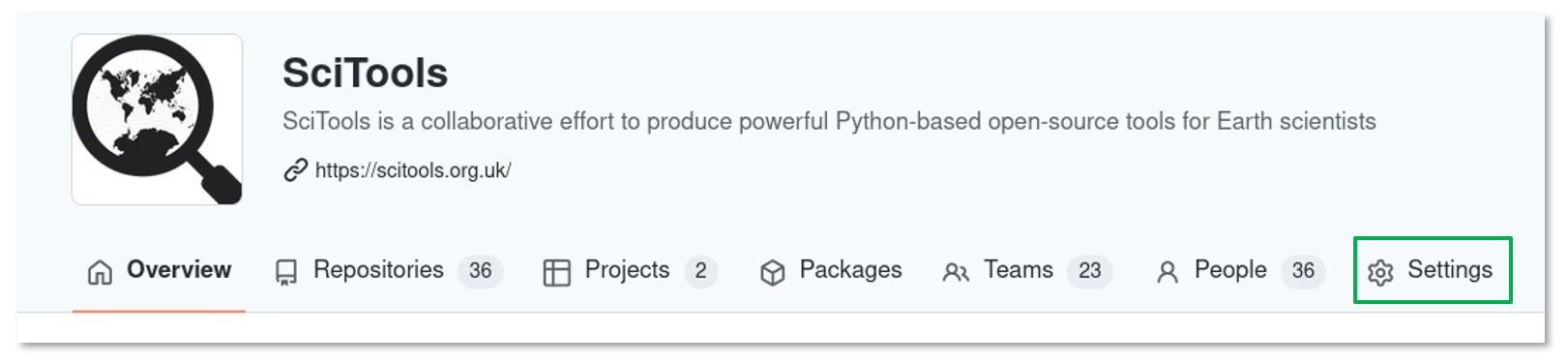
Click the SciTools organisation
⚙️ Settingsoption.
Click the
GitHub Appsoption from the<> Developer settingssection in the left hand sidebar.

Now click the
New GitHub Appbutton to display theRegister new GitHub Appform.
Within the Register new GitHub App form, complete the following fields:
Set the mandatory
GitHub App namefield to beiris-actions.Set the mandatory
Homepage URLfield to behttps://github.com/SciTools/irisUnder the
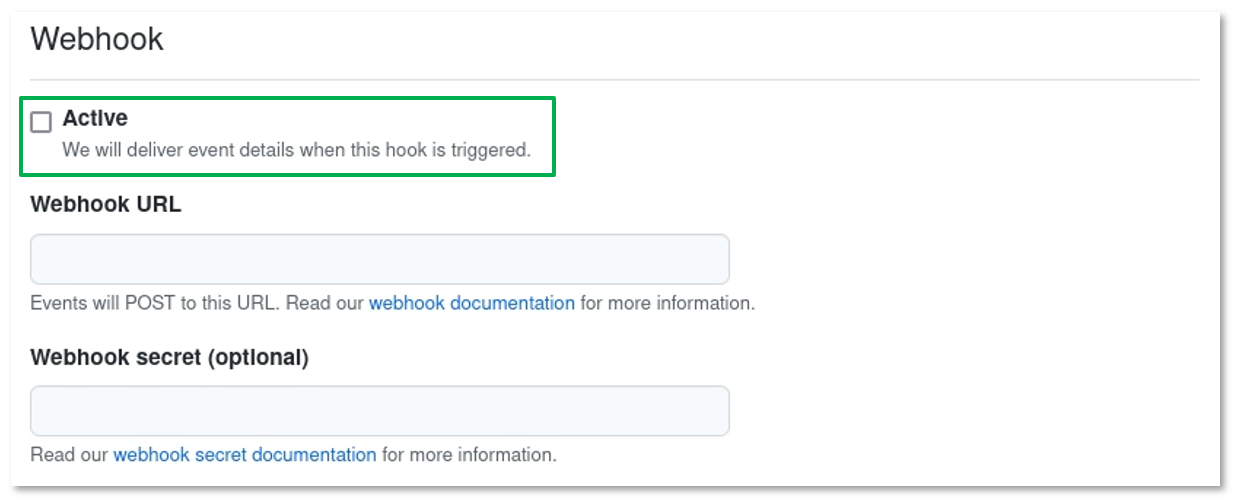
Webhooksection, uncheck theActivecheckbox. Note that, noWebhook URLis required.
Under the
Repository permissionssection, set theContentsfield to beAccess: Read and write.

Under the
Repository permissionssection, set thePull requestsfield to beAccess: Read and write.

Under the
Organization permissionssection, set theMembersfield to beAccess: Read-only.

Under the
User permissionssection, for theWhere can this GitHub App be installed?field, check theOnly on this accountradio-button i.e., only allow this GitHub App to be installed on the SciTools account.

Finally, click the
Create GitHub Appbutton.
Configure GitHub App#
Creating the GitHub App will automatically redirect you to the SciTools settings / iris-actions
form for the newly created app.
Perform the following GitHub App configuration steps:
Under the
Aboutsection, note of the GitHubApp IDas this value is required later. See Create Repository Secrets.Under the
Display informationsection, optionally upload theirislogo as apngimage.Under the
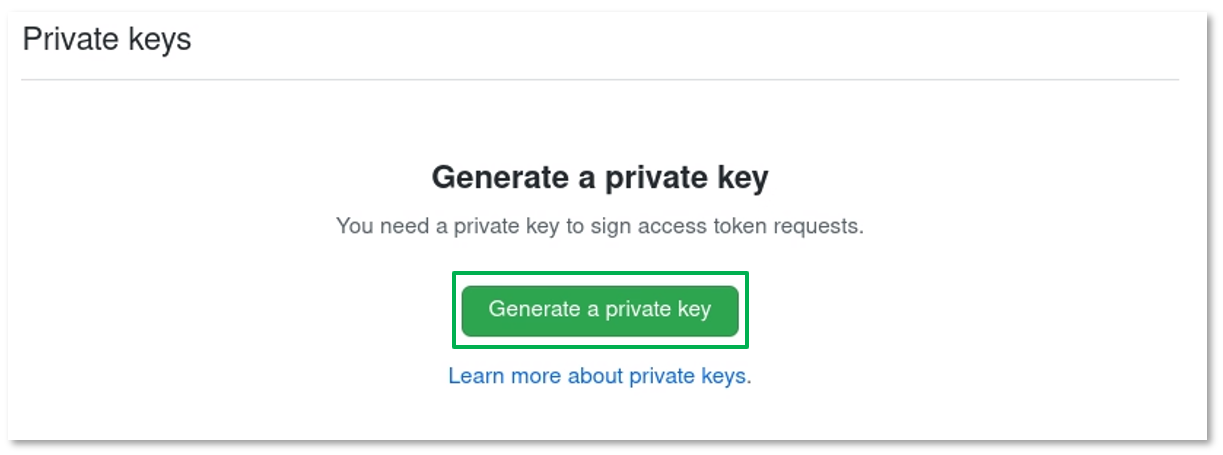
Private keyssection, click theGenerate a private keybutton.
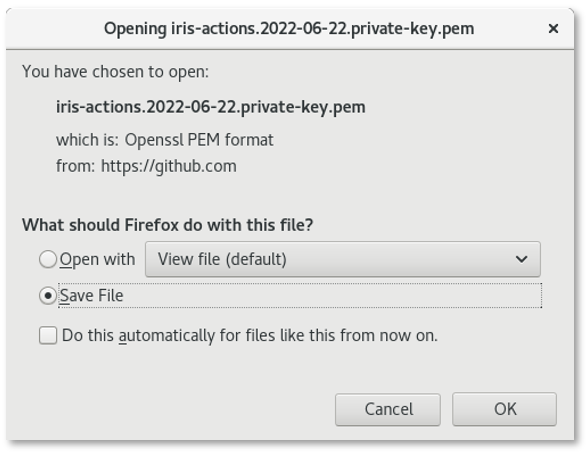
GitHub will automatically generate a private key to sign access token requests
for the app. Also a separate browser pop-up window will appear with the GitHub
App private key in OpenSSL PEM format.
Important
Please ensure that you save the OpenSSL PEM file and securely archive
its contents. The private key within this file is required later.
See Create Repository Secrets.
Install GitHub App#
To install the GitHub App:
Select the
Install Appoption from the top left menu of theScitools settings / iris-actionsform, then click theInstallbutton.

Select the
Only select repositoriesradio-button from theInstall iris-actionsform, and choose theSciTools/irisrepository.
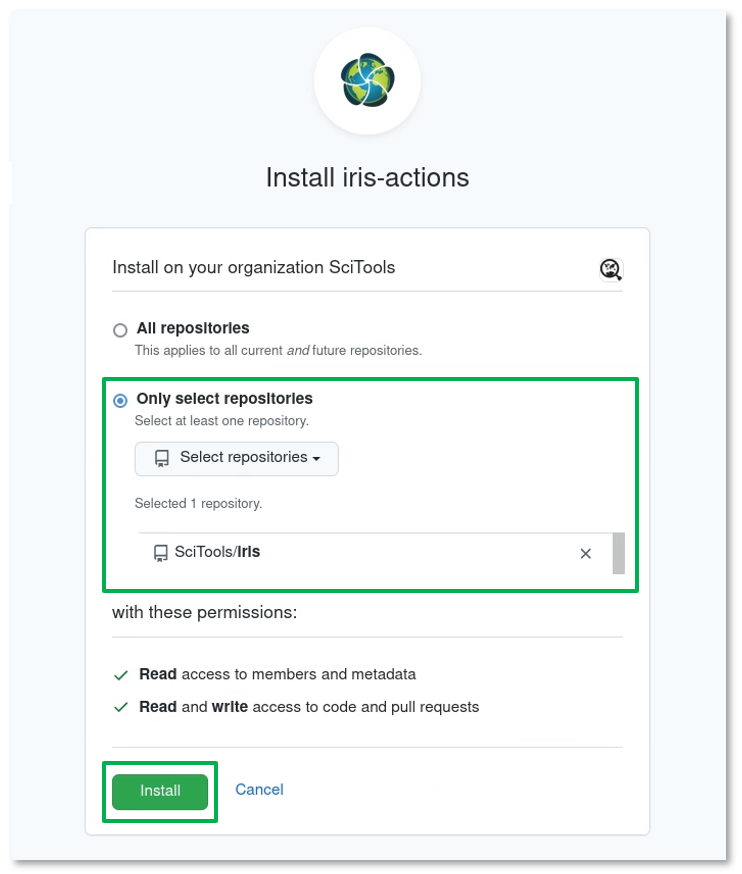
Click the
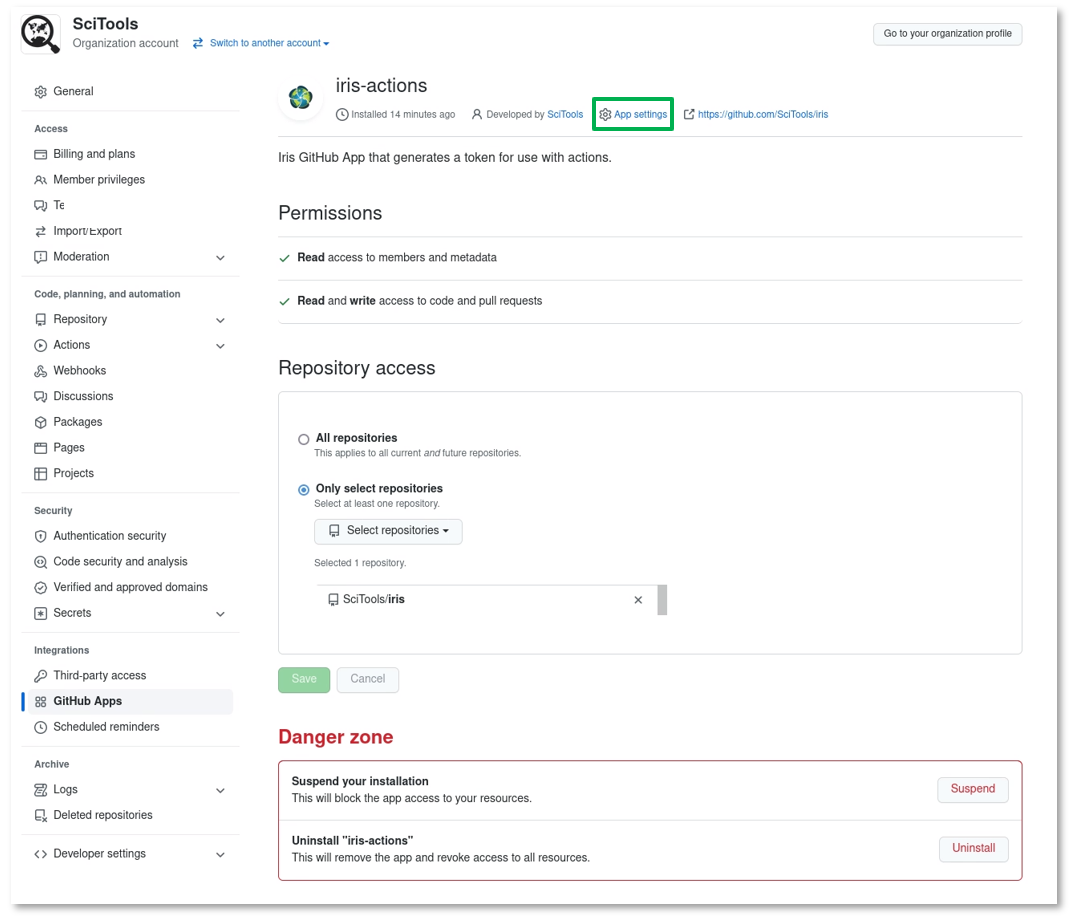
Installbutton.The successfully installed
iris-actionsGitHub App is now available under theGitHub Appsoption in theIntegrationssection of the SciTools organisationSettings. Note that, to reconfigure the installed app click the⚙️ App settingsoption.
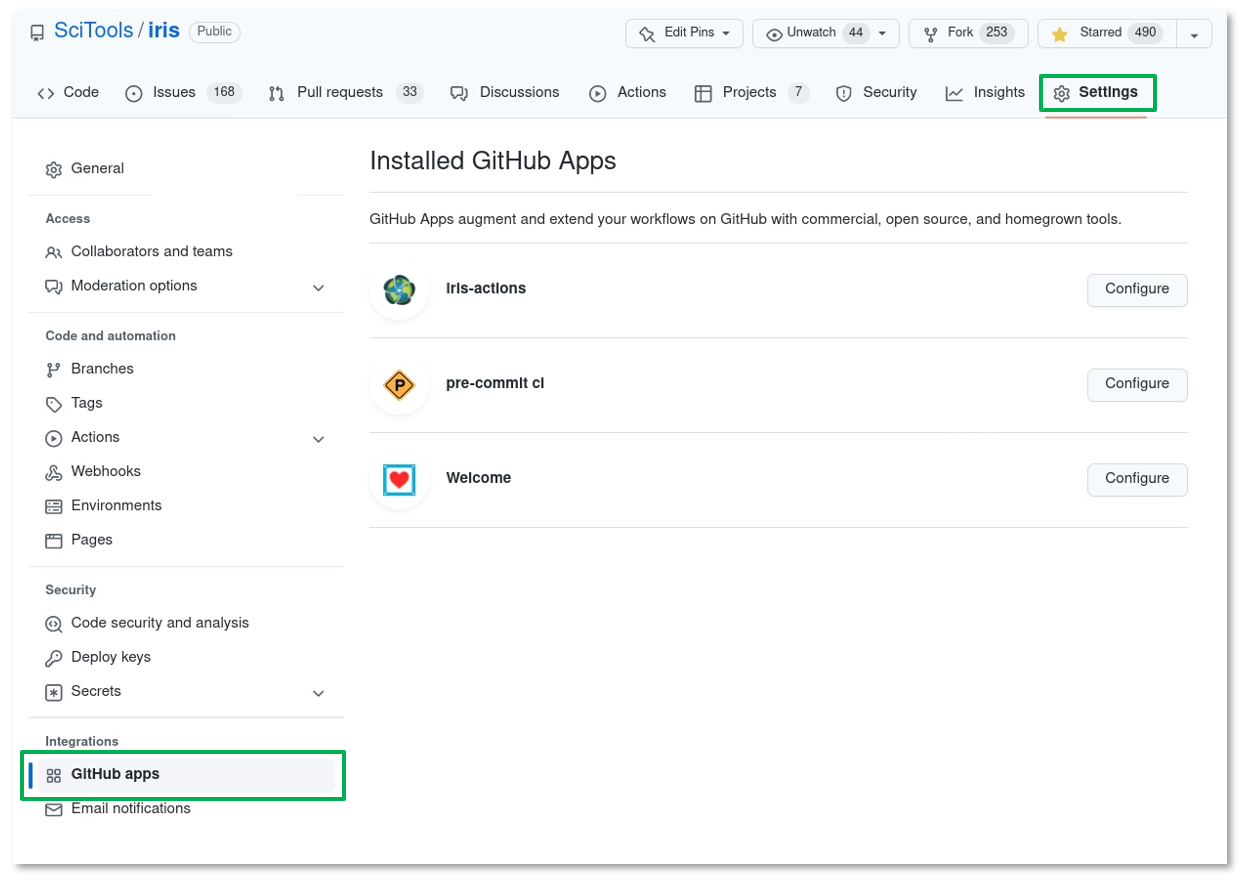
Finally, confirm that the
iris-actionsGitHub App is now available within the SciTools/iris repository by clicking theGitHub appsoption in the⚙️ Settingssection.
Create Repository Secrets#
The GitHub Action that requests an access token from the iris-actions
GitHub App must be configured with the following information:
the
App ID, andthe
OpenSSL PEMprivate key
associated with the iris-actions GitHub App. This sensitive information is
made securely available by creating SciTools/iris repository secrets:
Click the SciTools/iris repository
⚙️ Settingsoption.

Click the
Actionsoption from theSecuritysection in the left hand sidebar.
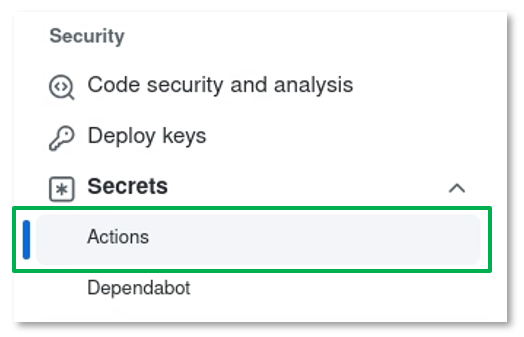
Click the
New repository secretbutton.
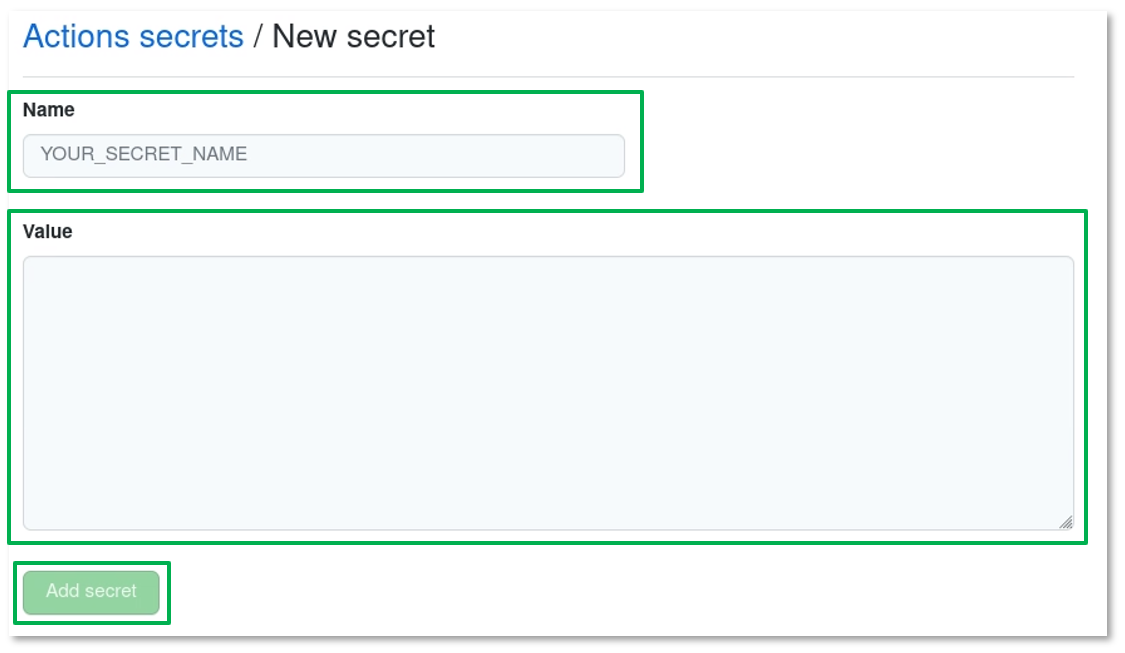
Complete the
Actions secrets / New secretform for theApp ID:Set the
Namefield to beAUTH_APP_ID.Set the
Valuefield to be the numericaliris-actionsGitHubApp ID. See here.Click the
Add secretbutton.
Click the
New repository secretbutton again, and complete the form for theOpenSSL PEM:Set the
Namefield to beAUTH_APP_PRIVATE_KEY.Set the
Valuefield to be the entire contents of theOpenSSL PEMfile. See here.Click the
Add secretbutton.
A summary of the newly created SciTools/iris repository secrets is now available:

Use GitHub App#
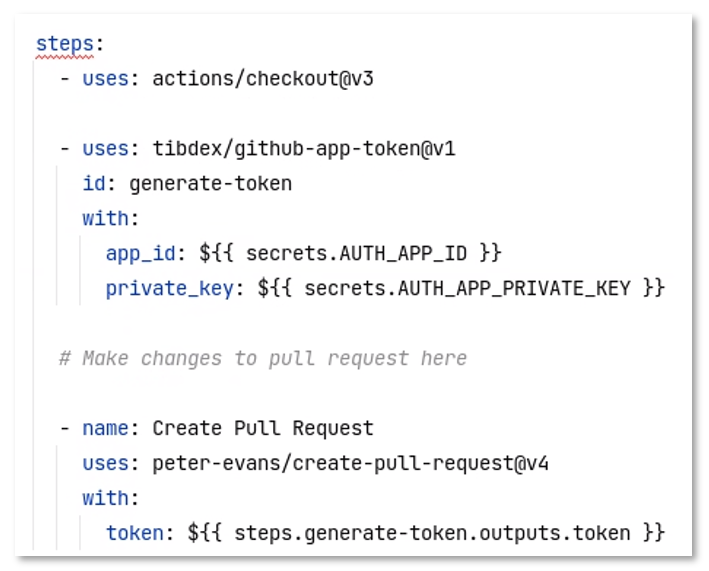
The following example workflow shows how to use the github-app-token GHA to generate a token for use with the create-pull-request GHA: